Getting started
Guide, chapter 1~/guide/start
Install
- Download the installer from the Download page.
- Run it. If Windows shows "Windows protected your PC", choose More info, check the app is PubStudio, then choose Run anyway. The Download page explains why.
- Open PubStudio from the Start menu or the desktop. Your
.puband.pubxfiles now open in it when you double-click them.
PubStudio keeps itself up to date. When a new version has downloaded, Update ready appears at the top of the window and in the status bar. Choose Restart and install, or keep working and it installs the next time you close PubStudio.
Finding your way around
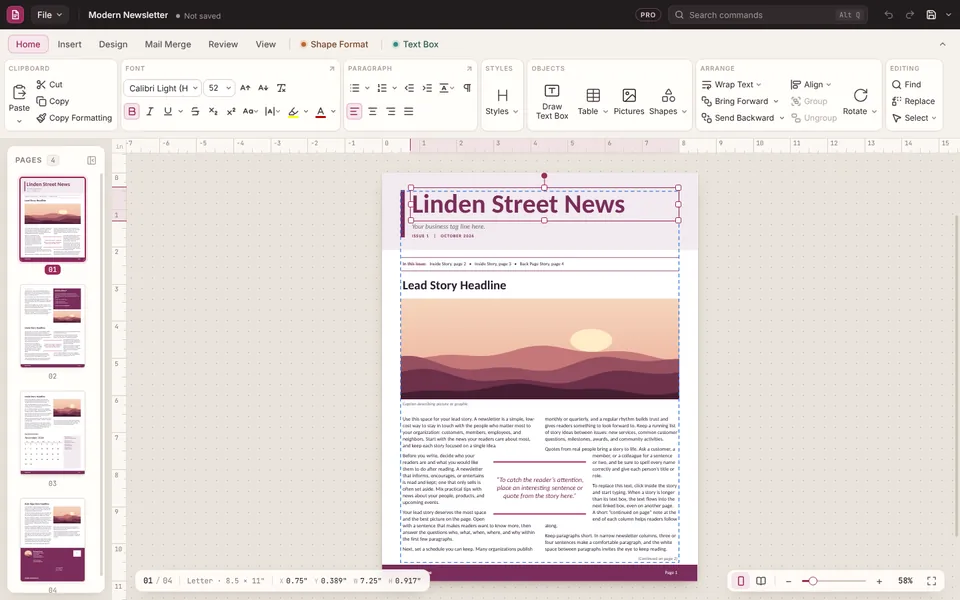
- The top bar has Undo, Redo and Save, the publication's name and whether it has unsaved changes, and the command search. Press Alt+Q and type what you want, such as "page number" or "group".
- The ribbon holds the commands, on the File, Home, Insert, Design, Mail Merge, Review and View tabs. More tabs appear while you work on a text box, picture, shape, table, master page or catalog page. Ctrl+F1 hides or shows the ribbon.
- The Pages pane down the left shows every page. Click one to go to it, or right-click for page commands.
- The status bar at the bottom shows the selected object's position and size, and the zoom.
- Right-click anything for a menu of what you can do with it.
Start a new publication
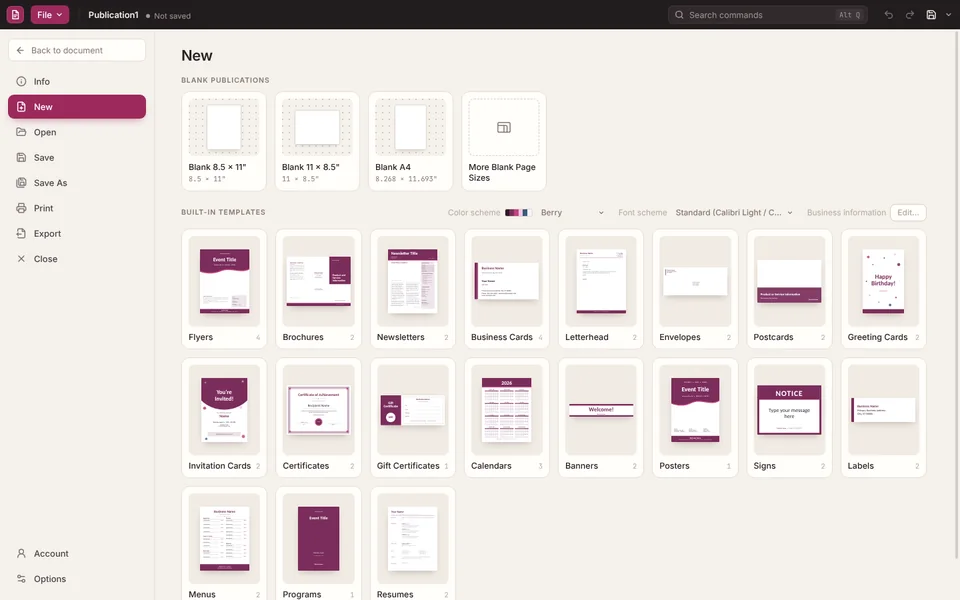
Choose File > New (Ctrl+N).
- Blank publications come in the common sizes. More Blank Page Sizes has the rest, and you can set your own size.
- Built-in templates cover flyers, newsletters, brochures, business cards, labels for Avery sheets, calendars, menus, certificates, forms and more. Pick a category, then a template, then Create. Pro The free version has the first template in each category; the rest are marked Pro.
- Color scheme and font scheme, on the right, set the colours and fonts the template uses. You can change both later on the Design tab.
- My templates are publications you saved as templates. Pro
Open your files
Double-click a file in File Explorer, or use File > Open (Ctrl+O). The Recent list there shows what you opened last.
- Publisher files (
.pub, from Publisher 98 to 365) open with their text, tables and cell colours, shapes, pictures, text wrap, linked text boxes and master pages. - Word, RTF, OpenDocument, web pages, WordPerfect and Works files flow their text through linked text boxes on new pages, with pictures and tables.
- A picture opens as a new publication holding the picture.
- PDF files can't be opened. Copy the text from your PDF viewer, or save the page as a picture and insert that.
- Any other file gives up whatever readable text it holds.
If a publication looks a little different from Publisher, the usual cause is a missing font, which makes text run longer. Install the fonts the publication uses and open it again.
Working on a .pub file
When you open a .pub file, the top bar says Opened from .pub · Save makes a .pubx copy. You can edit it straight away. Your .pub file is never changed. When you save, PubStudio asks where to keep a .pubx copy, which is PubStudio's own format. If you close without saving, your changes are gone and the .pub is as it was.
Saving
- Save (Ctrl+S) keeps your changes. The first time, it asks for a name and a folder.
- Save As (F12) saves a copy under a new name or in another folder. The publication you're working on then becomes the new copy, and the old file stays as it was.
- The top bar says Unsaved changes until you save, then Saved.
- Save As can also save a template (
.pubt) that then appears under My templates in File > New. Pro
PubStudio never saves your publication by itself. To share a copy that anyone can open, make a PDF: see Make a PDF.
Backup copies
While you work, PubStudio keeps a backup copy of unsaved work in its own folder, every 10 minutes. It never writes to your files. If PubStudio or your PC closes unexpectedly, the next start tells you a backup was kept, and you'll find it under Recovered publications in File > Open. When you close PubStudio normally, the backups are cleared.
To change how often it keeps a backup, or to turn this off, use File > Options > Save.
File > Info and Options
- Info shows the publication's properties, and has Business Details, Layout Check and Compress Pictures.
- Options sets the app appearance (light, dark or the same as Windows), measurement units, how far the arrow keys move objects, spelling and Fix As You Type, and backups.
- Help writes to support with your version details filled in, lists the keyboard shortcuts, and opens this guide.
Your licence key
PubStudio is free to use. Pro adds the features marked Pro in this guide. To turn Pro on after you buy:
- Copy your key from your receipt email or the thank-you page.
- Open File > Account and choose Enter licence key.
- Paste the key and activate it. The card then says Activated.
Each licence works on 1 PC at a time. To move it to a new PC, choose Deactivate on this PC on the old one first, then activate it on the new one. Manage subscription, on the same card, is where you change or cancel your plan. More on the Account page.