Text
Guide, chapter 2~/guide/text
Text boxes
- Draw a text box. Choose Home > Draw Text Box, then drag on the page where you want it.
- Type. The cursor is already in the new box. To type in an existing box, click into its text, or select the box and press Enter or F2, or just start typing.
- Finish. Press Esc, or click outside the box.
Drag a box by its edge to move it, and by its handles to resize it. Shapes take text too: double-click one and type.
To paste text without its formatting, use Home > Paste > Keep Text Only. Insert > Insert File brings the text of a Word or other document into the box.
Fonts and formatting
Select the text first, then use the Font group on the Home tab: font, size, bold, italic, underline (with every underline style), strikethrough, colour and highlight. It also has:
- Change Case: Sentence case, lowercase, UPPERCASE, Capitalize Each Word and tOGGLE cASE, plus Small Caps (Ctrl+Shift+K) and All Caps (Ctrl+Shift+A).
- Character Spacing: tighter or looser letters, kerning and scaling. More Spacing has the exact settings.
- Clear All Formatting takes the text back to plain.
To copy a look from one piece of text to another, put the cursor in the text you like and press Ctrl+Shift+C (Copy Formatting), then select the other text and press Ctrl+Shift+V. Right-click > Font has every setting in one window.
Paragraphs and bullets
- Alignment: left, centre, right or justified, in the Paragraph group on the Home tab.
- Line spacing and space before or after a paragraph: the Line Spacing button. Line Spacing Options has exact amounts.
- Indents: Increase and Decrease Indent Position. Right-click > Paragraph sets exact indents.
- Bullets and numbering: the Bullets and Numbering buttons. Bullets and Numbering... chooses the symbol, number style and spacing.
- Tabs: right-click > Tabs sets left, centre, right and decimal tabs, with dot leaders if you like.
- Show Special Characters shows spaces, tabs and paragraph marks while you work. They don't print.
Styles
A style is a saved look for a paragraph, such as a heading or body text. Changing a style changes every paragraph that uses it. Home > Styles applies one. The same menu has New Style, and Import Styles, which brings styles in from another publication. Right-click a style to modify, rename or duplicate it.
Text that doesn't fit: linked boxes
When a box has more text than it can show, an A… mark appears at its bottom corner. You can:
- Continue it in another box. Select the full box, choose Create Link on the Text Box tab, then click an empty text box. The story flows on into it, and keeps flowing as you type. Next and Previous jump between the boxes, and Break unlinks them. Press Esc to cancel a link you started.
- Fit the text to the box. Text Box tab > Fit Text: Best Fit sizes the text to fill the box, Shrink Text When It Overflows only makes it smaller, and Grow Box to Fit Text makes the box taller instead.
- Make the box bigger, or make the text smaller.
Word documents you open arrive as linked boxes across new pages, so they flow the same way.
The Text Box tab
It appears while you work in a text box.
- Text Direction turns the text on its side. Hyphenation splits long words at line ends.
- Columns splits the box into columns. Margins sets the space between the box edge and its text.
- Alignment places the text at the top, middle or bottom of the box, and left, centre or right.
- Effects: shadow, outline, emboss and engrave for the text.
- Typography: Drop Cap makes a large first letter. Number Style, Ligatures, Stylistic Sets and Swash use the extra designs that some fonts include.
Text Art
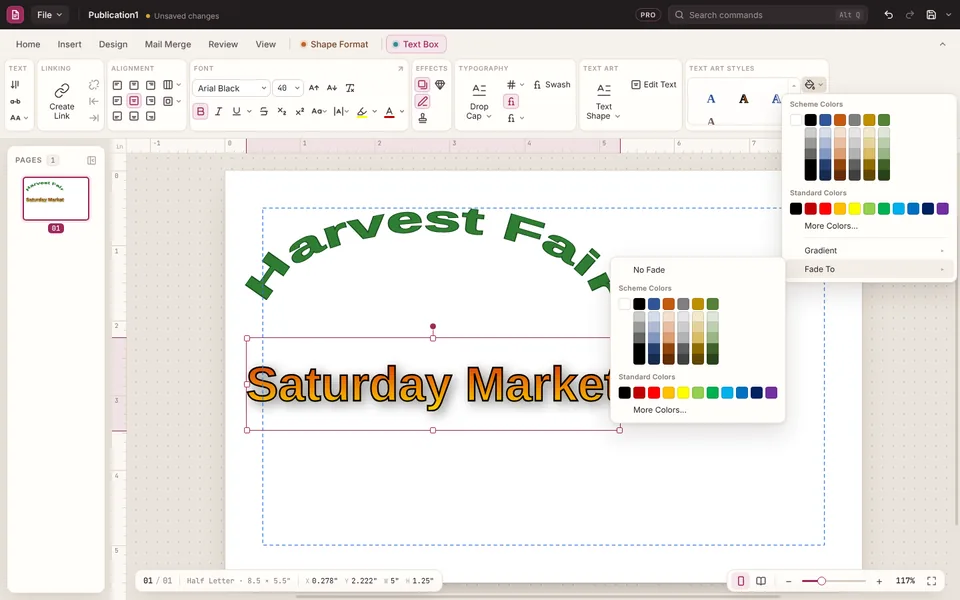
Insert > Text Art makes decorative text that you can bend into shapes. Pick a style and type the words; they're already selected. While it's selected, the Text Box tab has:
- Text Shape bends it into one of 39 shapes, such as an arch, a circle or a wave. Edit Text changes the words, font and size.
- Text Art Styles apply a ready-made look.
- Text Fill sets the colour. For a fade, pick the first colour, then Text Fill > Fade To and the second colour, such as red fading to yellow. Text Fill > Gradient sets the direction, and Fade To > No Fade takes it off.
- Text Outline and Text Effects add an outline, shadow, emboss or engrave.
When the window is narrow, Text Fill, Text Outline and Text Effects show as three small buttons (a paint bucket, a pen and a sparkle) at the right of Text Art Styles.
Symbols, dates and links
- Insert > Symbol adds characters such as © or é. More Symbols has every character in a font.
- Insert > Date & Time adds today's date or time in the format you pick.
- Insert > Link (Ctrl+K) makes the selected text or object a link to a web page, an email address or another page. Ctrl+click a link to follow it. Bookmark marks a place that links can go to.
Find and Replace
Home > Find (Ctrl+F) and Replace (Ctrl+H) open a pane that searches every text box in the publication.
Spelling and language
- Words the spelling check doesn't know get a red wavy underline. Right-click one for suggestions, Ignore All or Add to Dictionary.
- Review > Spelling (F7) goes through the whole publication.
- Thesaurus (Shift+F7) suggests other words. Right-click a word > Synonyms is quicker.
- Research looks a word up in Wikipedia, and Translate translates the selected text. Both need an internet connection.
- Language > Set Proofing Language picks the language that spelling uses for the selected text.
- Fix As You Type corrects common typing slips as you go. Change what it fixes in File > Options > Proofing.