Printing, PDF and sharing
Guide, chapter 6~/guide/print
Before you print
Review > Layout Check lists anything that could spoil the print: text that doesn't fit its box, objects partly off the page, hidden objects, empty boxes, and pictures too low in resolution to print sharply. Click a line to go to it.
Printing
File > Print (Ctrl+P) shows a preview of each sheet as it will come out of the printer, which updates as you change the settings. Use the arrows under it to look through the sheets.
- Printer and Copies of each page.
- Pages: all of them, this page only, or the pages you choose, such as
1-3, 5. - Layout: how pages go onto the paper. See the sections below.
- Paper size and orientation. If the page is bigger than the paper, Shrink to fit the paper scales it down.
- Two-sided printing: flip on the long edge (like a book), flip on the short edge (like a notepad), or turning the stack by hand if your printer can't print both sides. By hand, PubStudio prints the fronts, then tells you when to turn the stack over and put it back.
- Collate: with several copies, print in sets (1, 2, 3, 1, 2, 3) or each page together (1, 1, 2, 2, 3, 3).
- Color, Grayscale or Black ink only.
- Trim marks: crop, bleed and registration marks, and Let objects run past the edge, for work that a print shop will trim.
Labels, business cards and postcards
- Start from the right size. File > New > Labels has templates for Avery sheets, such as Return Address Label (Avery 5160). The Avery number is on the label packet.
- Make one label. The publication is the size of a single label.
- Print. File > Print chooses Fill the sheet with copies and says which Avery sheet it prints on. Each label goes exactly where the sheet's labels are.
- Partly used sheet? Set Start at row and column to the first empty label.
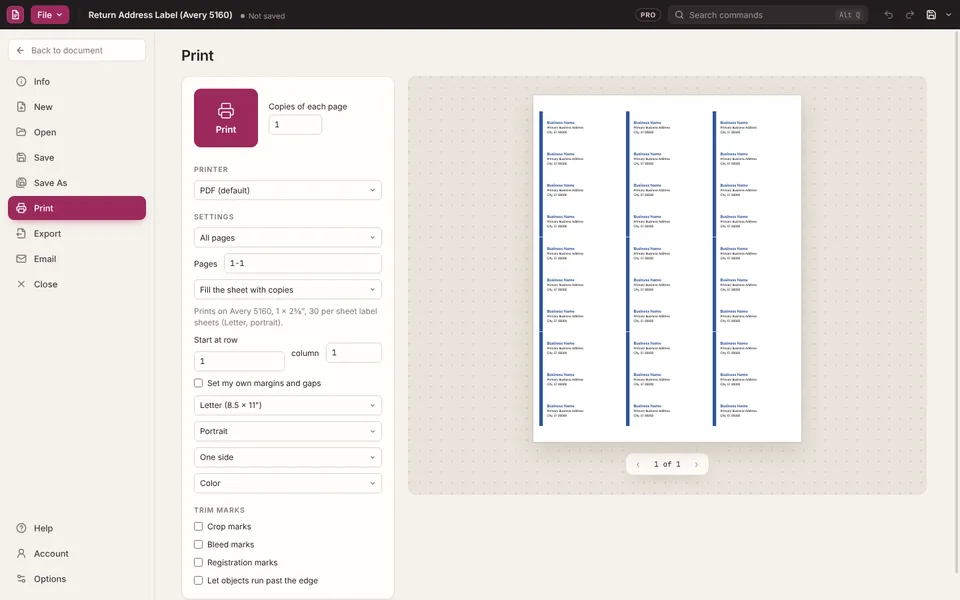
PubStudio knows these Letter-size Avery sheets: 5160, 5161, 5162, 5163, 5164, 5167, 5168, 5195, 5266 (file folders), 5395 (name badges), 8371 (business cards) and 8387 (postcards). For another sheet, make a page the size of one label, choose Fill the sheet with copies, and tick Set my own margins and gaps to match the sheet. It's worth printing on plain paper first and holding it against the label sheet.
To put a different label on each spot, such as name badges, make one page per label and choose Several pages on each sheet. For a different address on each label, see Address labels from a list.
Booklets
- Make the pages at the size of the finished booklet, such as half a Letter sheet, in reading order.
- Choose a booklet layout in File > Print: Booklet, opens like a book, or Booklet, flips up for one bound at the top.
- Print on both sides. PubStudio sets two-sided printing, flipped on the short edge, and puts the pages in folding order, two to each side of the sheet. If the number of pages isn't a multiple of four, it adds blank pages at the end and tells you how many.
- Fold the stack in half and staple it on the fold.
Folded cards
A greeting card or invitation can print on one side of one sheet and fold to size. Choose Card from half a sheet or Card from a quarter sheet, opening sideways or flipping up. Four pages print on the sheet, with the inside two upside down so they come out right when folded. The note under the setting says which way to fold.
Posters and banners
For a page bigger than your paper, choose Poster across several sheets. Each page prints in pieces that overlap by the amount you set, so you can trim and tape them together.
Make a PDF
File > Export > PDF or XPS keeps the layout, fonts and pictures exactly as they are, in a file anyone can open. The text stays real, so it can be searched and copied, and links still work. Pick the quality:
- Minimum size for reading on screen. Pictures are 96 dpi.
- Standard for email and printing at home. Pictures are 150 dpi.
- High quality printing for office printers and copy shops. Pictures are 300 dpi.
- Commercial press for a print shop, with full-resolution pictures, crop marks and bleed. Pro
The free version puts a small "Made with PubStudio" note at the foot of each page of a PDF. Pro PDFs have no note.
Other ways to export
These are all on File > Export. Pro
- For a Print Shop: a PDF with full-resolution pictures, crop marks and 1/8" bleed, ready to send.
- For a Photo Lab: each page as a 300 dpi picture for a photo printing service.
- For Another PC: one
.zipholding the publication and a PDF of it, to take to another computer. - Pictures: each page as a PNG, JPEG, GIF, TIFF, BMP, WMF or EMF picture at the resolution you choose, for websites, email and social media.
- Web Page: a single-file web page (
.mht), or a web page with its pictures in a folder. - Another File Type: Word, RTF, plain text, WordPerfect or PostScript. XPS is next to PDF.
To export just one object, right-click it > Save as Picture.
File > Email can send the current page as the message itself, or attach the publication, a PDF or an XPS file. PubStudio doesn't send mail itself: the new message opens in the mail program on your PC, such as Outlook or Windows Mail, where you add who it goes to and send it.