Tables
Guide, chapter 4~/guide/tables
Insert a table
Choose Home > Table or Insert > Table and move across the grid to pick the number of rows and columns. Insert Table, in the same menu, takes exact numbers, and Draw Table lets you drag it out on the page.
Click into a cell to type. Tab moves to the next cell and Shift+Tab to the one before. A row grows taller as you type more than fits in it.
Tables in .pub files open with their cell colours and borders, ready to edit.
Selecting cells
Drag across cells to select several. The Select menu on the table's Layout tab selects the cell, column, row or whole table that the cursor is in. Right-click a cell for the same choices.
Rows and columns
The Layout and Table Design tabs appear while you work in a table.
On the Layout tab:
- Insert Above, Below, Left or Right adds a row or column next to the cursor.
- Delete removes the selected rows or columns, or the whole table.
- Merge Cells joins the selected cells into one. Split Cells divides a cell again.
- Text Direction turns the text in a cell on its side. Cell Margins sets the space around the text.
- Alignment places the text at the top, middle or bottom of the cell, and left, centre or right.
Row heights and column widths
- Drag the line between two rows or columns. Hold Shift while you drag a column line to widen that column without narrowing the next one.
- The Row and Column boxes in the Size group take exact measurements.
- Distribute Rows and Distribute Columns make the selected rows or columns the same size.
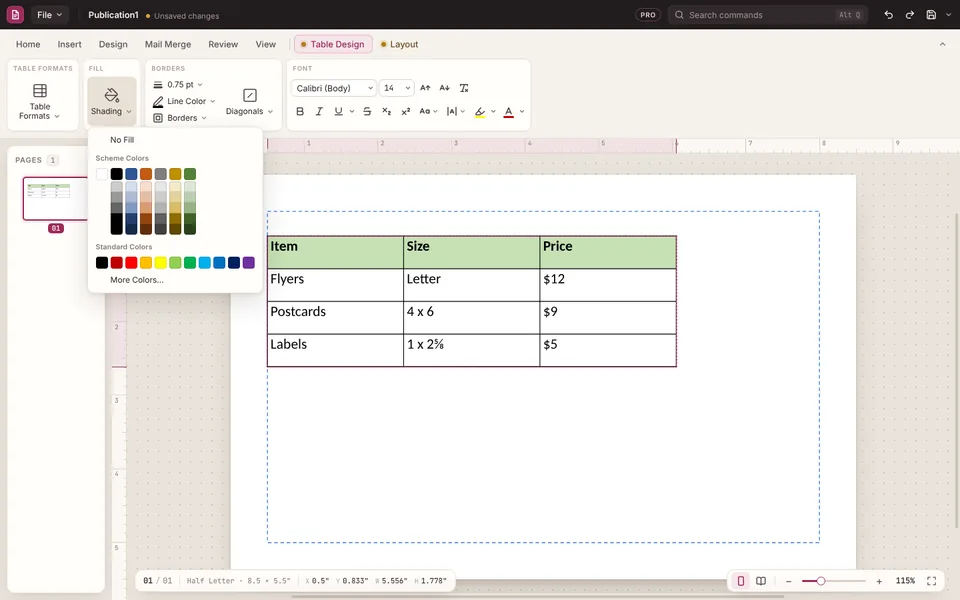
Cell colours (Shading)
- Click into the cell you want to colour, or drag across several cells.
- Open the Table Design tab and choose Shading.
- Pick a colour. Only the cell with the cursor, or the selected cells, change.
Table Formats, on the same tab, gives the whole table a ready-made look.
Borders
On the Table Design tab, pick a line weight and a Line Color first, then use Borders to put lines on the outside, inside, or one side of the selected cells. No Border takes them off. Diagonals splits a cell with a diagonal line, down or up.