Print Avery labels
Return address, address, shipping and name badge labels, without Publisher~/avery-labels
Pick your Avery number, make one label, print a full sheet. PubStudio has label templates for common Avery sheets and shows exactly where each label lands before you print. It's free, with no account.
A sheet of the same label
- Start from your sheet: File > New > Labels, and pick the Avery number from your label packet, such as Return Address Label (Avery 5160).
- Make one label. The page is the size of a single label, so just type and add a picture or logo.
- Print: File > Print fills the sheet with copies, each one exactly where the sheet's labels are. Using a partly used sheet? Set the row and column of the first empty label.
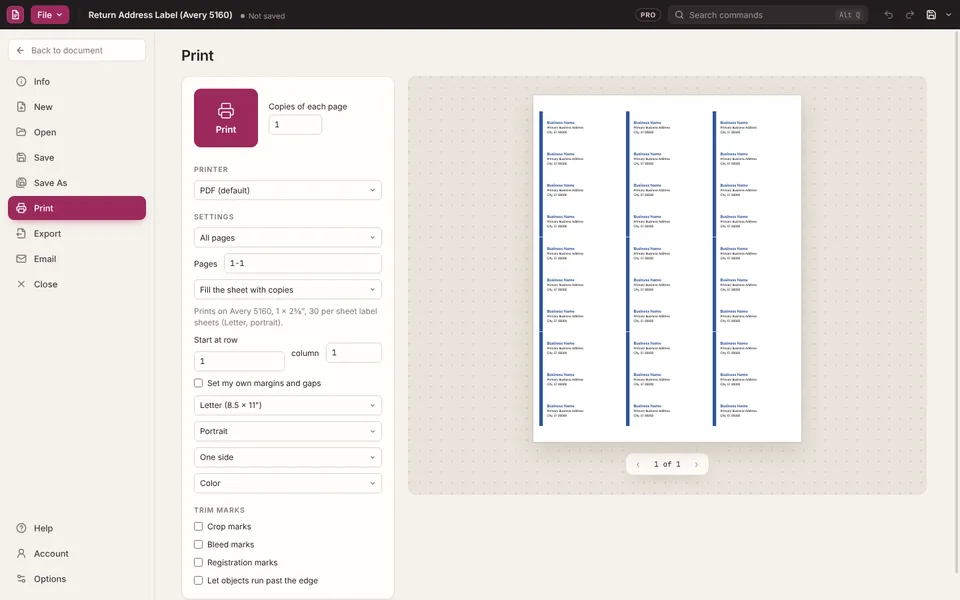
PubStudio knows these Letter-size Avery sheets: 5160, 5161, 5162, 5163, 5164, 5167, 5168, 5195, 5266 (file folders), 5395 (name badges), 8371 (business cards) and 8387 (postcards). For another sheet, make a page the size of one label and set your own label grid when you print.
A different address on each label
Mail merge prints one label per person from an Excel or CSV list, Access or your Outlook contacts. Choose the list, put an Address Block on the label, preview, and print. Mail merge is part of Pro. The steps are in the guide.
Labels you made in Publisher
Open your old .pub label file in PubStudio and print it the same way. Your original file is never changed. See open a .pub file.
PubStudio is not affiliated with Avery. Avery and the Avery product numbers are trademarks of their owner, used here only to say which sheets fit.